

Table of Contents
- Introduction(ANSYS Installation Tutorial)
- Why Learn ANSYS?
- System Requirements
- Downloading ANSYS
- Installing ANSYS
- Selecting ANSYS Products
- Choosing the Installation Directory
- Configuring ANSYS Licensing
- Starting ANSYS APDL
- Running Your First Example
- Common Installation Problems
- Who Should Take This Course?
- Free YouTube Preview
- Frequently Asked Questions
Introduction
Installing ANSYS correctly is the first and most important step toward learning finite element analysis (FEA). Many beginners encounter installation problems, licensing errors, or incorrect software configurations before they even start their first simulation.
This comprehensive tutorial is designed to guide you through the complete installation process of ANSYS. From selecting the correct products and installation directory to configuring licensing and launching your first Mechanical APDL project, every step is explained in a practical and beginner-friendly way.
Whether you are a civil engineering student, a structural engineer, or a researcher beginning your journey with ANSYS, this course provides the foundation you need to start working confidently with the software.
This ANSYS Installation Tutorial is designed for engineers and students who want to install ANSYS correctly and start working with Mechanical APDL from the very first day.
What You Will Learn
- ✅ Install ANSYS Software
- ✅ Install ANSYS Products
- ✅ Choose Installation Directory
- ✅ Configure Licensing
- ✅ Start Mechanical APDL
- ✅ Create Your First Project
- ✅ Run Your First Example
- ✅ Verify Successful Installation.
Why Learn ANSYS?
Finite Element Analysis (FEA) has become one of the most essential engineering tools for structural, mechanical, aerospace, and civil engineering applications. ANSYS is one of the world’s leading FEA software packages, widely used in universities, research centers, and engineering companies.
Learning ANSYS enables engineers to simulate real-world problems, predict structural behavior, optimize designs, and reduce costly experimental testing.
This tutorial provides the essential first step by teaching you how to install the software correctly and prepare your system for professional simulation work.
Unlike many online guides, this ANSYS Installation Tutorial explains not only the installation process but also the basic configuration required before running your first simulation.
System Requirements
Before installing ANSYS, ensure that your computer meets the minimum hardware and software requirements.
Recommended Specifications
- Windows 10 or Windows 11 (64-bit)
- Minimum 8 GB RAM (16 GB Recommended)
- Intel Core i5 or AMD Ryzen 5 Processor
- SSD Storage Recommended
- Administrator Access
- Stable Internet Connection (if required)
Downloading ANSYS
Before beginning the installation, download the appropriate version of ANSYS from the official website or your licensed academic or commercial source.
Always make sure you are using a compatible version based on your operating system and hardware configuration.
You can find official information about ANSYS products on the ANSYS official website.
Installing ANSYS
This section demonstrates the complete installation procedure.
Topics covered include:
- Running the installer
- Selecting installation language
- Accepting the license agreement
- Choosing installation components
- Monitoring installation progress
Selecting ANSYS Products
One of the most important installation steps is selecting the correct software modules.
This tutorial explains:
- Mechanical APDL
- Workbench
- Documentation
- Additional Utilities
and shows which products are necessary for beginners.
Choosing Installation Directory
Selecting the appropriate installation directory helps avoid future software conflicts.
You will learn:
- Recommended installation paths
- Available disk space requirements
- Managing multiple ANSYS versions
Configuring Licensing
Licensing is one of the most confusing steps for beginners.
In this tutorial you will learn:
- License configuration
- Entering license information
- Verifying license status
- Troubleshooting licensing problems
Starting ANSYS APDL
After installation, the tutorial explains how to launch Mechanical APDL for the first time.
Topics include:
- Starting the software
- Understanding the interface
- Basic navigation
- Initial settings
Running Your First Example
To ensure everything is installed correctly, the course finishes by running a simple example project inside ANSYS.
This confirms that the software, licensing, and installation process have all been completed successfully.
Who Is This Course For?
This course is suitable for:
- Civil Engineers
- Structural Engineers
- Mechanical Engineers
- Graduate Students
- Researchers
- Beginners in Finite Element Analysis
- Engineers learning ANSYS APDL for the first time
Free Preview
Watch the free preview of this tutorial on our official YouTube channel before purchasing the complete course.se.
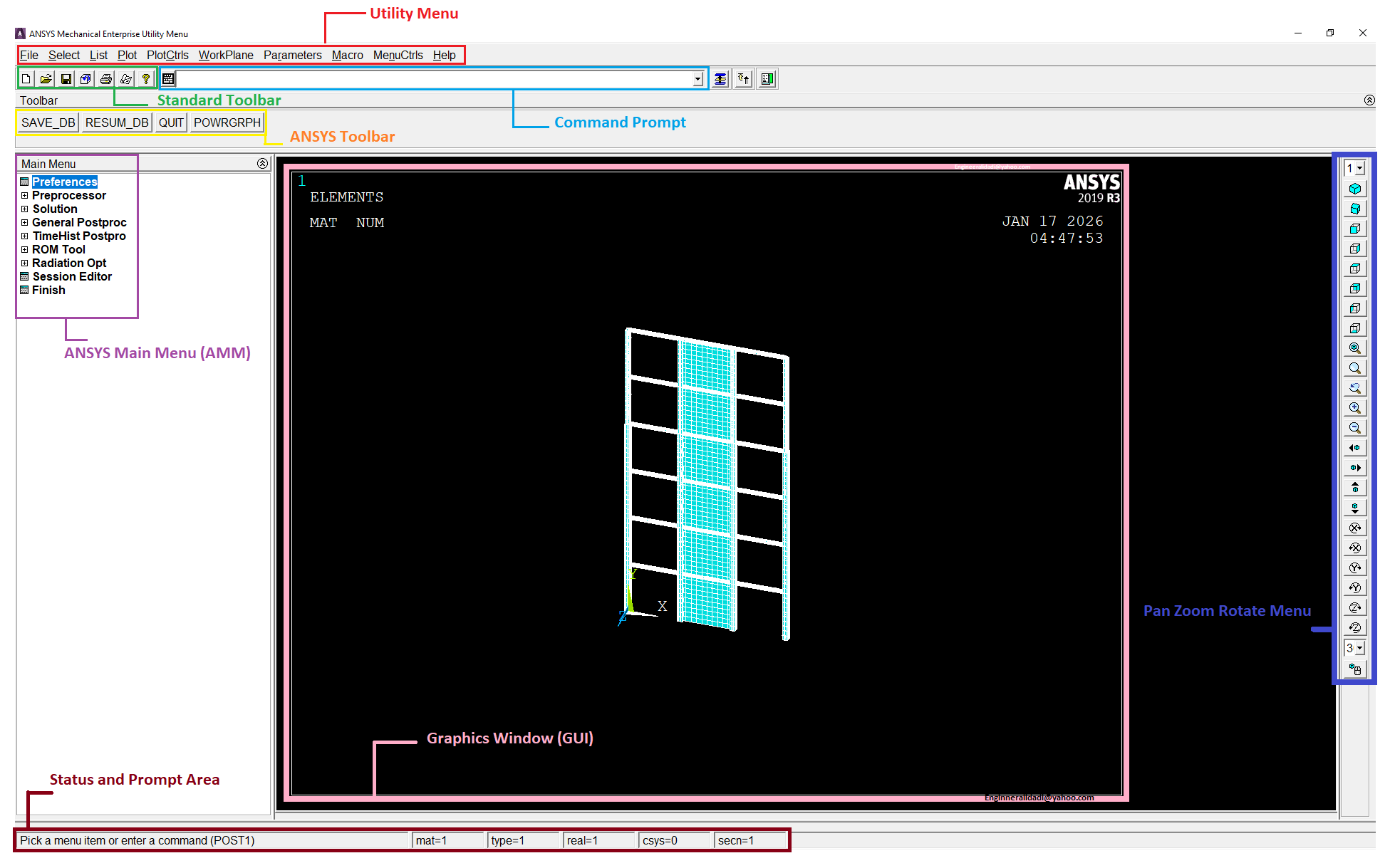
After completing this ANSYS Installation Tutorial, you will be able to install, configure, and launch ANSYS APDL without common installation errors.
Frequently Asked Questions
Is this tutorial suitable for complete beginners?
Yes. No previous experience with ANSYS is required.
Does the tutorial include software installation?
Yes. The complete installation process is covered step by step.
Is licensing explained?
Yes. Licensing configuration is included.
Which ANSYS version is used?
2012
Do I receive lifetime access?
Yes
Conclusion
If you are looking for a reliable ANSYS Installation Tutorial, this course provides everything you need to begin your ANSYS learning journey.
This ANSYS Installation Tutorial provides a complete foundation for engineers who want to start learning ANSYS APDL professionally.
Related Courses
Why Buy This Course from IAMAPDL?
- ✔ Step-by-step explanation
- ✔ Real engineering examples
- ✔ Beginner-friendly lessons
- ✔ High-quality video recording
- ✔ Practical APDL workflow
- ✔ Lifetime access
- ✔ Continuous updates